
Guide
Illustrated answers to common questions, plus the MUTIC DIY product overview.
FAQ
Step-by-step answers for the things people do most: registering, finding tickets, getting in, and running an event. Screenshots show the web app in Traditional Chinese; it works the same in a mobile browser.
01How do I register for an event?Tap "Register now" on the event page, pick a ticket and fill in attendee details.
- 1
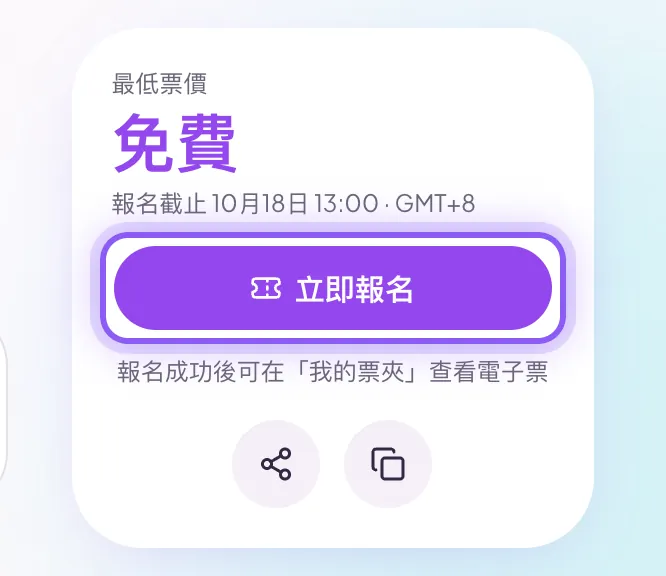
Open the event page and tap Register now. If you are not signed in, you will be asked to sign in or create an account first.
- 2
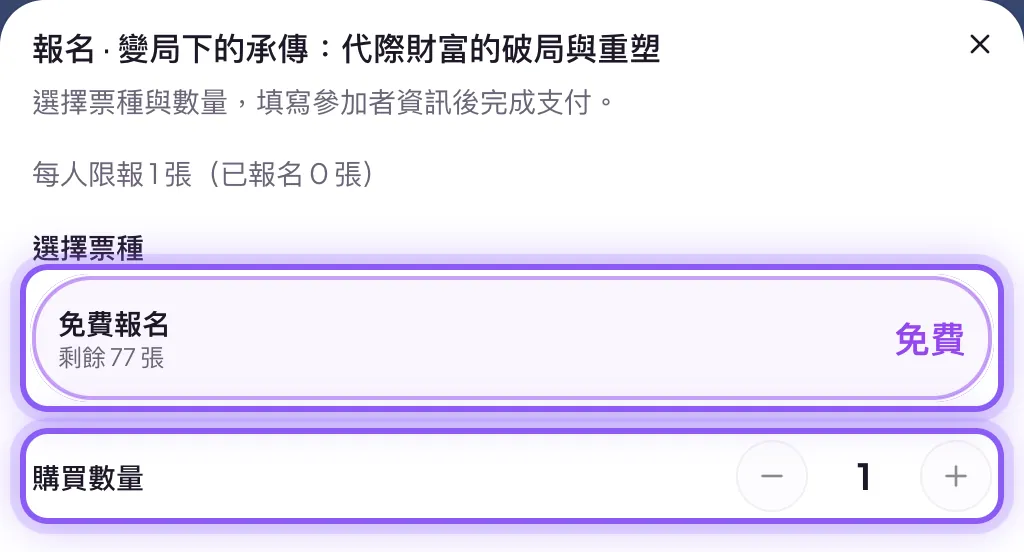
Choose a ticket type and adjust the quantity with − / +. If the event has a per-person limit, the dialog shows how many you have already registered.
- 3
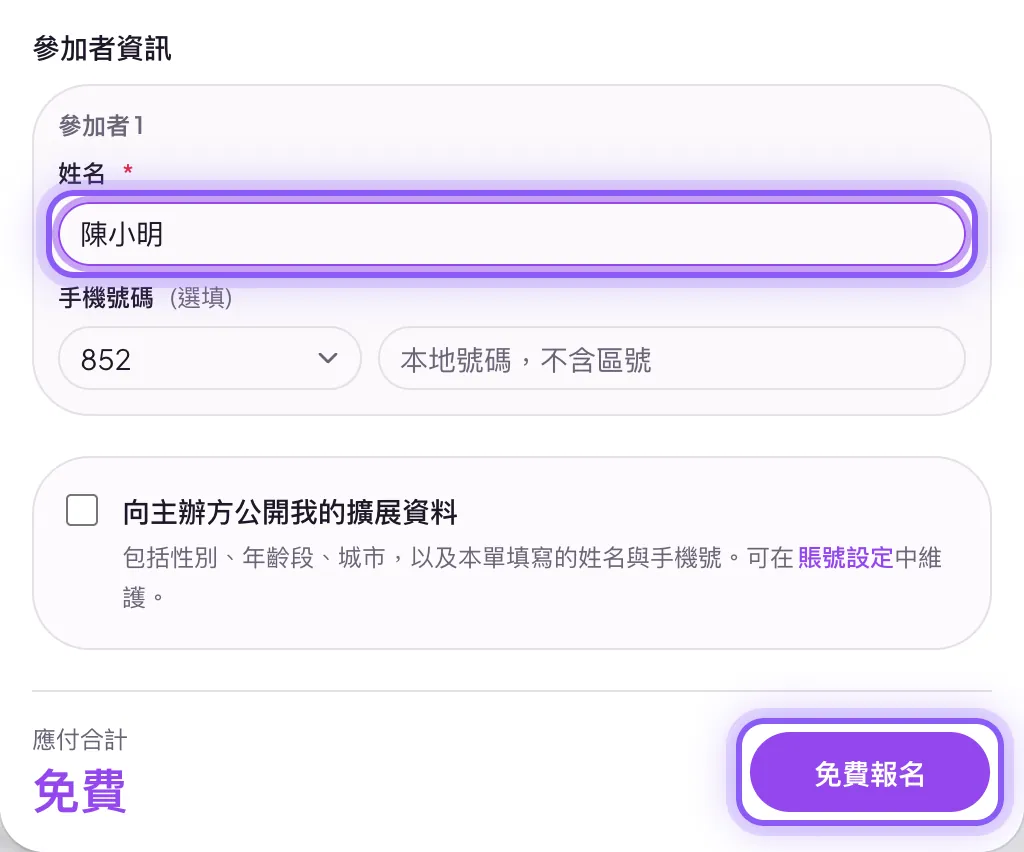
Enter each attendee's name (checked at the door); the phone number is optional. Then tap Register for free. For paid tickets the button reads Confirm payment, and you need to accept the ticketing policy first.
Tip|Once registered, your e-tickets appear under Tickets.
02Where do I find my e-ticket after registering?Avatar menu → Tickets → "View e-ticket" on the event card.
- 1
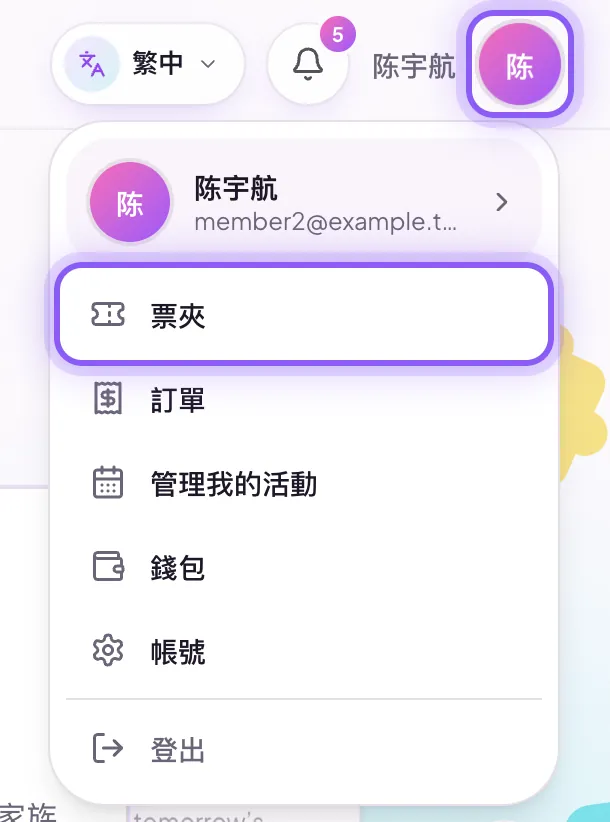
After signing in, tap your avatar in the top-right corner and choose Tickets.
- 2
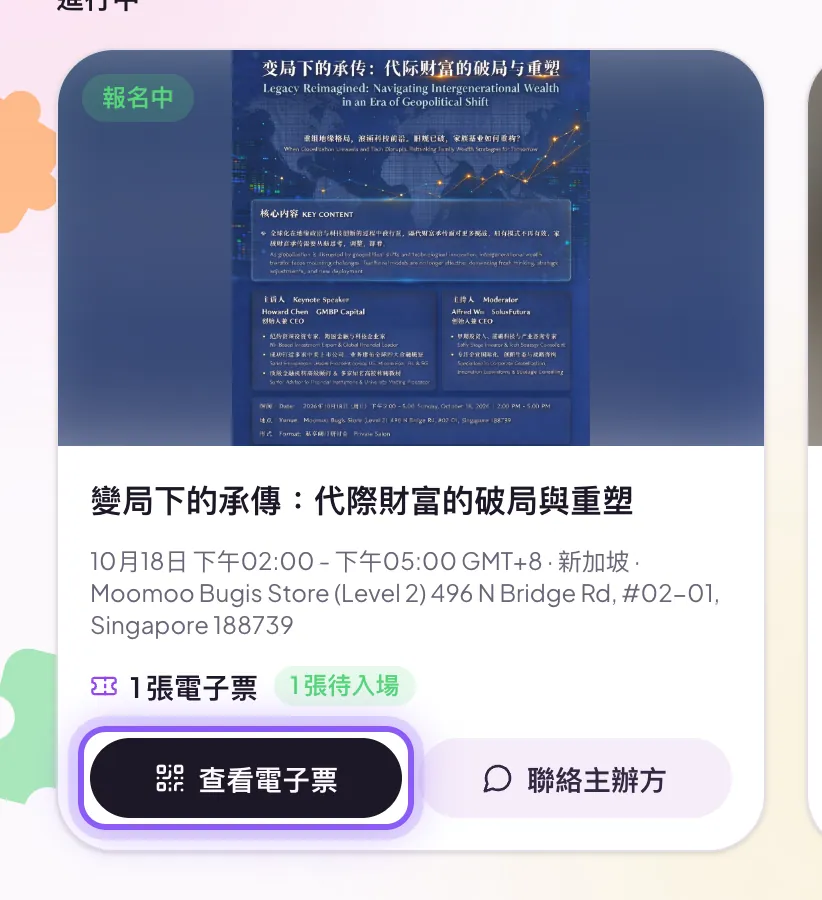
Find the event and tap View e-ticket on its card. The card also shows how many tickets you hold and how many are still pending entry.
- 3
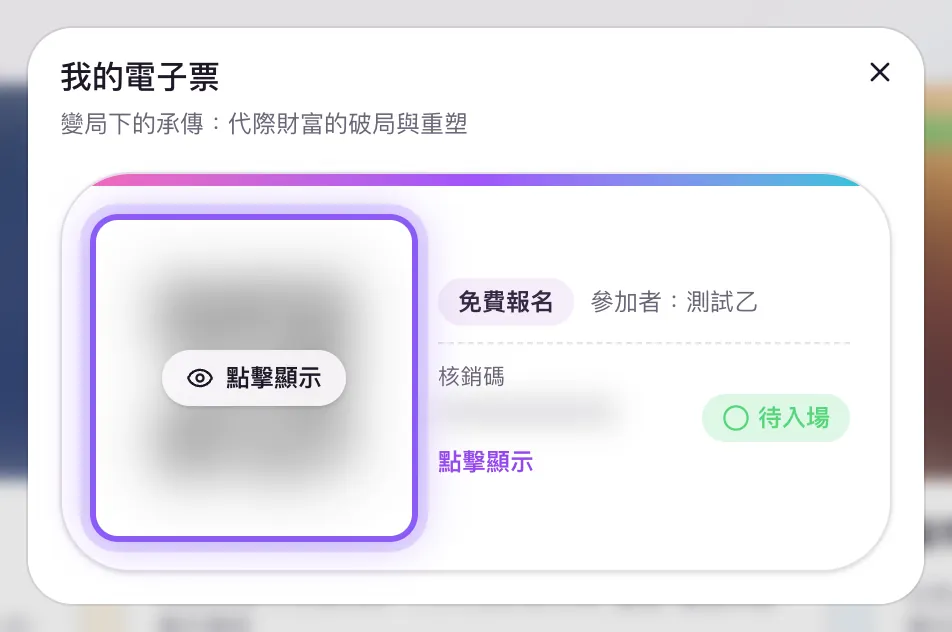
My e-tickets lists every attendee's ticket with the ticket type, attendee name and entry status.
Tip|You can also open tickets from the Orders page via "View e-tickets".
03How do I show my e-ticket at the entrance?Open the e-ticket, tap the QR code to reveal it, and let staff scan it or read out the check-in code.
- 1
Before you arrive, open Tickets → View e-ticket. For privacy, the QR code and check-in code are blurred by default.
- 2
Tap Tap to reveal on the QR code and show the QR code to staff. If it can't be scanned, read out the check-in code below it.
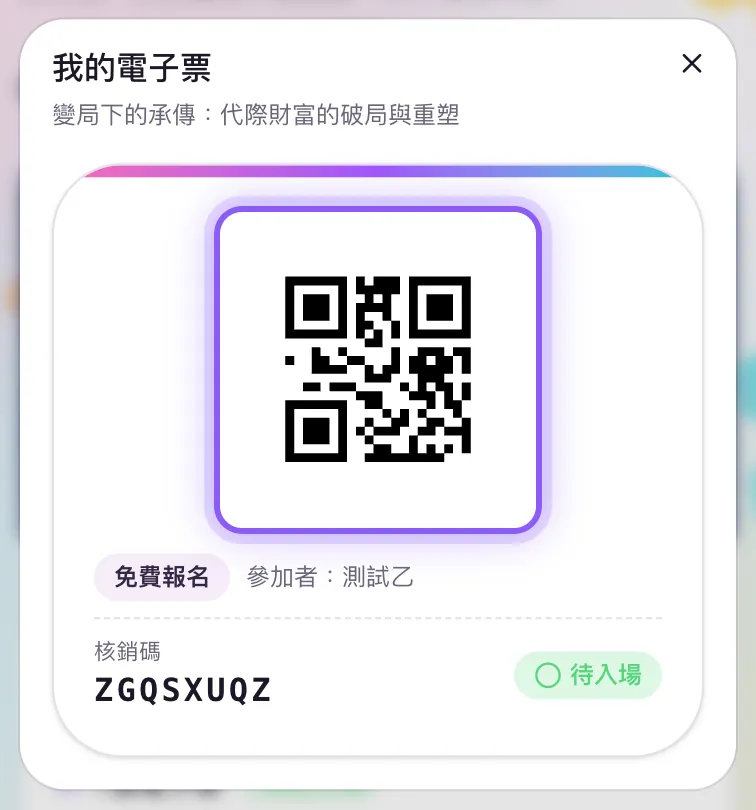
Tip|After check-in the status changes from Pending to Entered. If you registered several tickets, each attendee shows their own.
04How do I contact the organizer?Tap "Contact organizer" on the event card in Tickets to send a message.
- 1
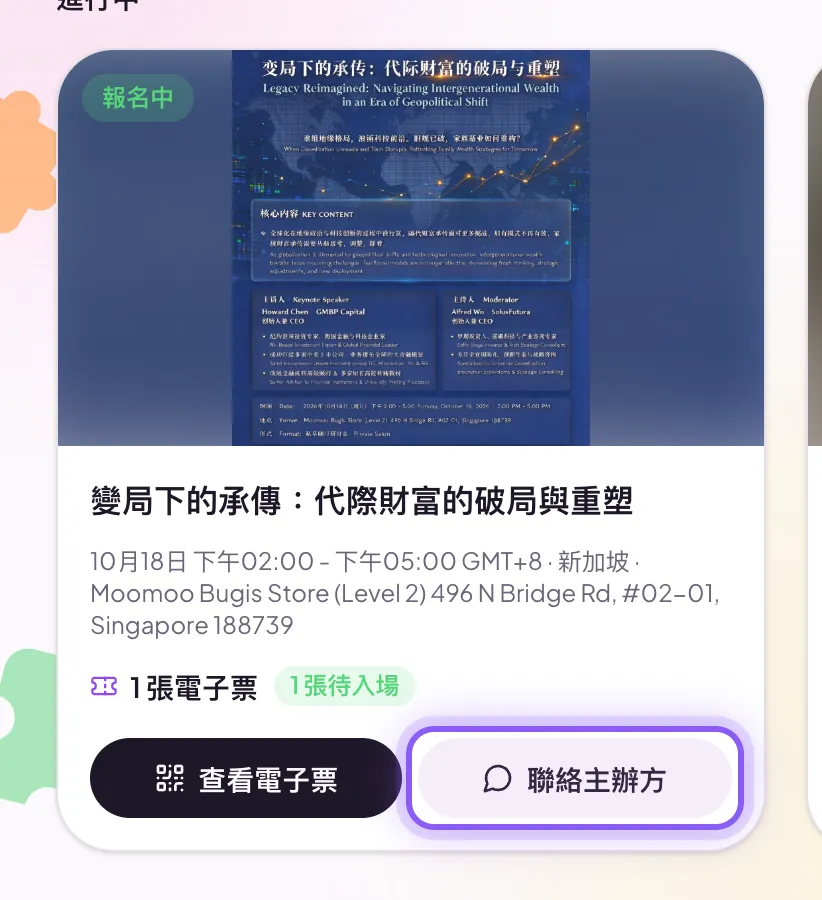
Open Tickets and tap Contact organizer on the event's card.
- 2
Type your question and send it. The organizer's reply appears in the same conversation.
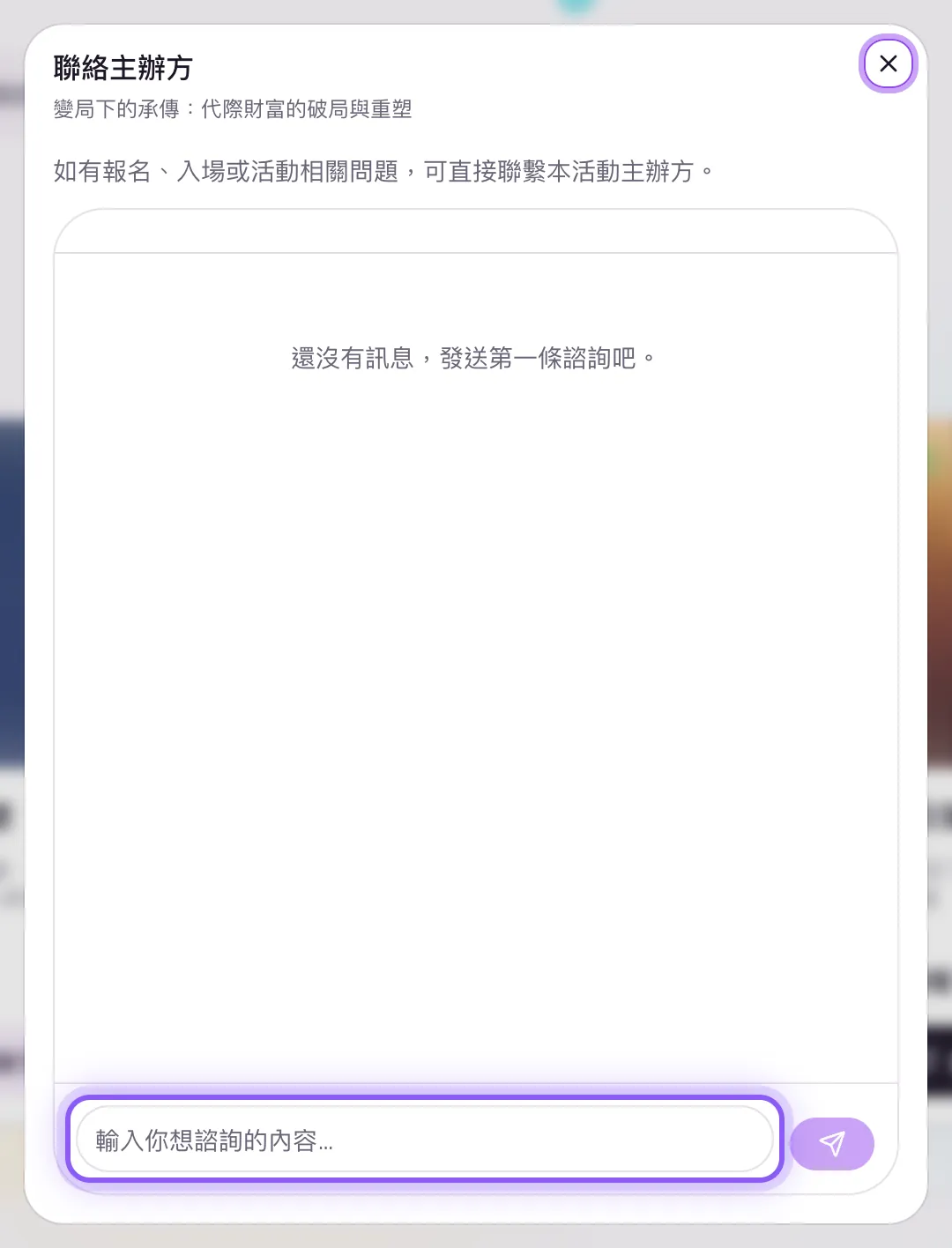
Tip|Only registered attendees can contact the organizer. After the event ends the chat becomes read-only, but the history stays visible.
05How do I view my orders? Can I cancel a registration?Orders live under Orders in the avatar menu; only unpaid orders can be cancelled by you.
- 1
Tap your avatar in the top-right corner and choose Orders.
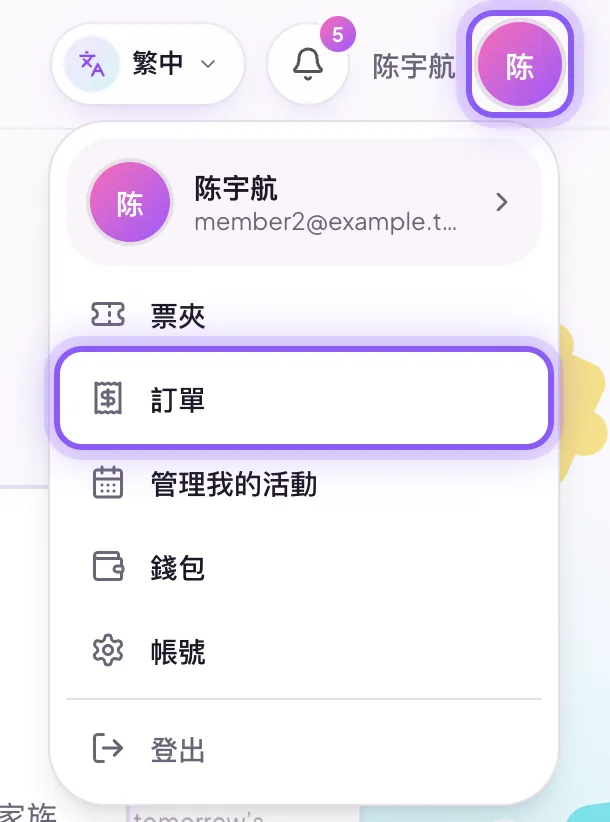
- 2
Each order shows its number, payment time, amount, tickets and attendees. Tap View e-tickets to open the tickets directly.
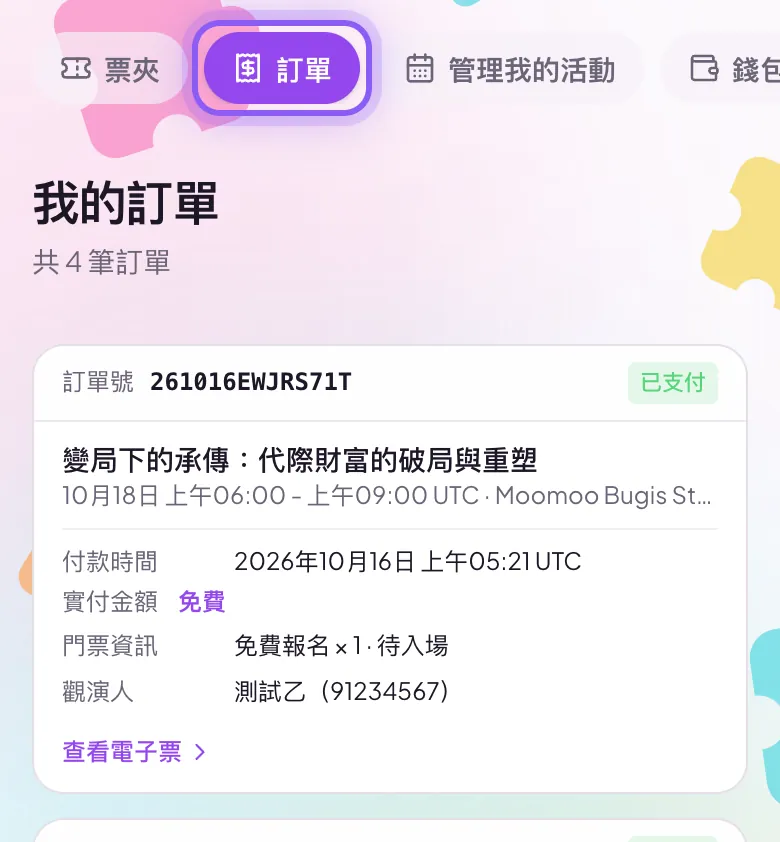
- 3
Unpaid orders can be paid with Pay now or removed with Cancel order. Completed registrations can't be cancelled on the site; for a refund, check the event's refund policy and then contact the organizer.
Tip|If the organizer cancels the event, paid tickets are refunded to the original payment method minus the platform service fee.
06How do I change my nickname, avatar or password?Avatar menu → Account, then edit your settings.
- 1
Tap your avatar in the top-right corner and choose Account.
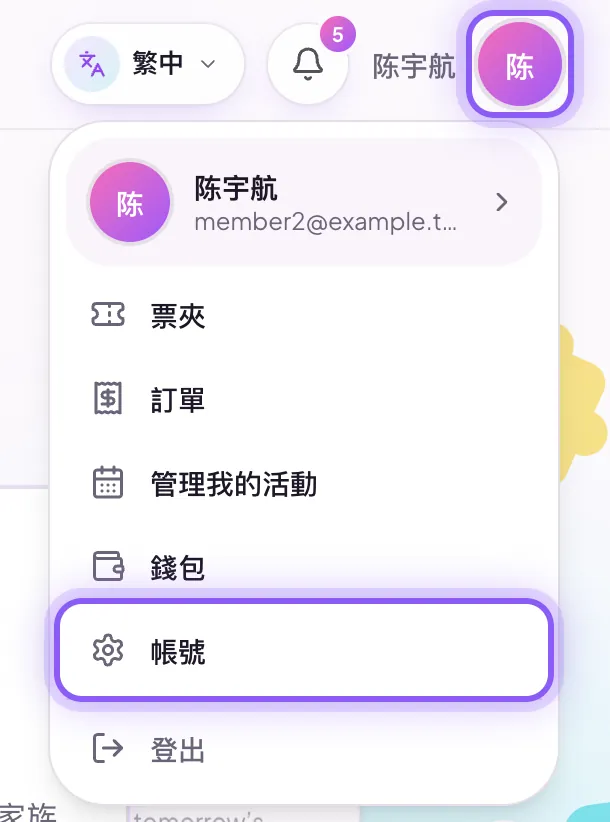
- 2
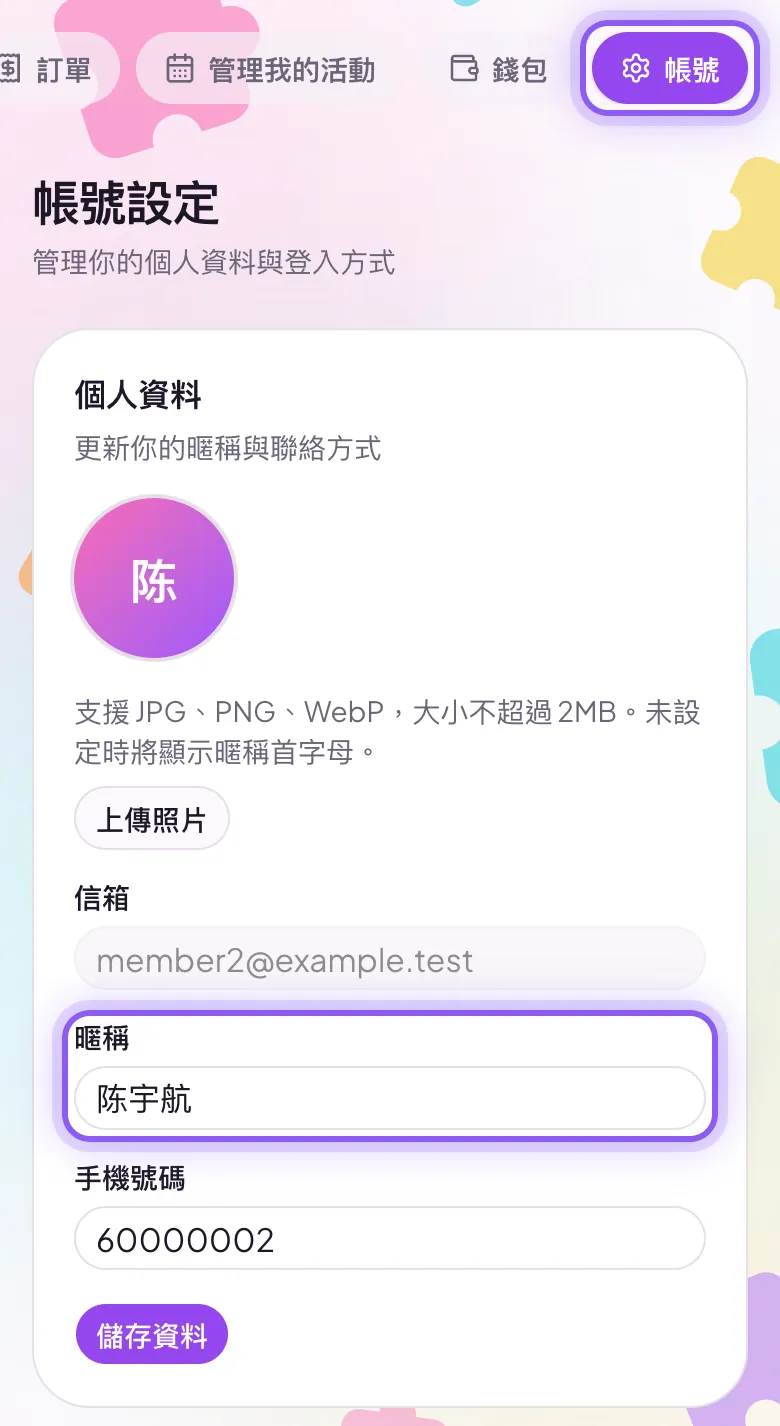
Under Profile, upload an avatar and change your nickname or phone number, then tap Save profile.
- 3
Under Password, set or change your password so you can sign in with email and password.
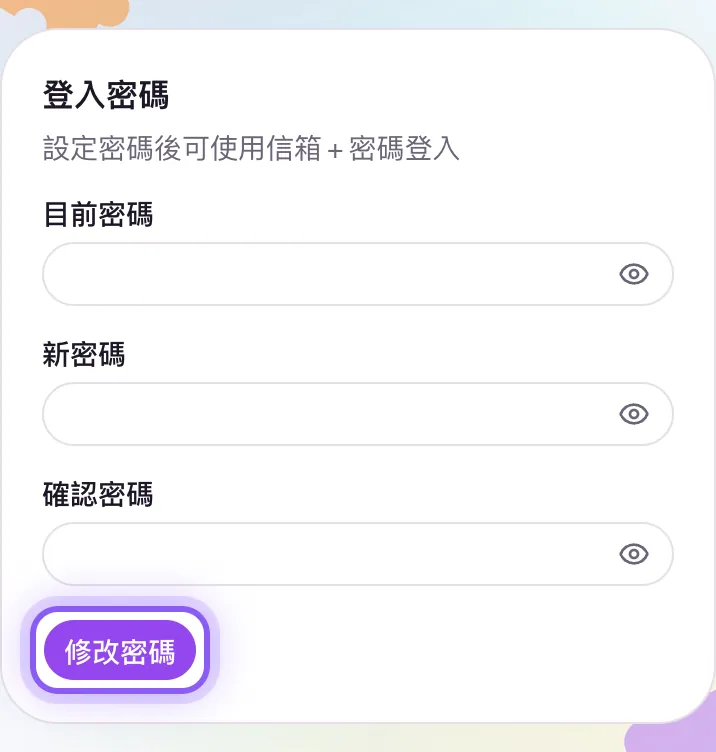
Tip|Forgot your password? Tap "Forgot password?" on the sign-in page and reset it with an email code.
Product overview
Everything MUTIC DIY can do, in one deck.
If the document below doesn't load, open the PDF here